Manga Panel Templates: 12 Page Layouts and When to Use Each
Twelve manga panel templates, from the 4-koma to the 3-tier page, splash and inset, with the scene each suits and how to fill them with AI-generated art.
Written by Bugra, founder of Gootaku
Quick answer
A manga panel template is a ready-made page grid that sets how many panels a page has, their sizes and the reading order. Twelve templates cover most pages, including the 4-koma, 3-tier page, splash and inset, each suited to a different scene.
Contents
A manga panel template is a ready-made page grid: a set of borders that tells you how many panels a page has, how big each one is and the order the reader moves through them. Templates save you from staring at a blank page, but only if you pick the right one for the scene. A quiet conversation and a sword clash need very different grids.
This guide describes 12 templates that cover almost every page you will draw or generate, explains the scene each one suits, and shows how to fill them with AI art. If you want the theory behind panel counts first, read how many panels per manga page. If you already know the theory and just want grids, keep going.
How to Read These Templates
Every template below is described in tiers (horizontal rows of panels), because that is how manga pages are built. Two conventions apply throughout:
- Manga reads right to left. In each tier, the first panel is on the right. Tiers go top to bottom. Our right-to-left reading guide covers the edge cases.
- Gutters carry time. The white space between panels is where time passes. Wider gutters suggest a longer pause; panels that touch or overlap suggest simultaneous action.
The 12 Templates
1. The 3-Tier Standard (5–6 panels)
Grid: three tiers of roughly equal height. Top tier: 2 panels. Middle tier: 1 wide panel. Bottom tier: 2 or 3 panels.
Use it for: ordinary story pages — characters walking, talking, arriving somewhere. It is the workhorse of shōnen and slice-of-life manga, and the safest default when you are unsure.
Tip: put the establishing shot in the middle wide panel so the reader re-orients halfway down the page.
2. The Conversation Grid (6 panels, 2×3)
Grid: three tiers, two equal panels each.
Use it for: back-and-forth dialogue. Each panel is one line or one reaction. The regular rhythm makes the reader focus on the words rather than the art.
Tip: break the grid once per page with a reaction close-up that is slightly larger. A page of six identical boxes reads as a storyboard, not a manga.
3. The 4-Koma Strip (4 panels, vertical)
Grid: four equal panels stacked in one vertical column, read top to bottom.
Use it for: gag strips and short comedy. The four beats are setup, development, twist and punchline (ki-shō-ten-ketsu). Many slice-of-life series started as 4-koma.
Tip: the punchline panel works best with a silent reaction. Our 3-panel gag strip guide covers the Western equivalent.
4. The Full Splash (1 panel)
Grid: one image covering the whole page, often bleeding off the edges.
Use it for: chapter openers, a new location, a transformation, the moment the villain appears. A splash is a full stop; use one or two per chapter at most.
Tip: put the page turn right before the splash so the reveal lands on the reader's first glance at the new page.
5. The Inset Splash (1 large + 1–2 insets)
Grid: a near-full-page image with one or two small panels floating over a corner.
Use it for: big moments that still need a reaction — the giant monster plus the hero's widened eyes in a small inset.
Tip: keep insets out of the focal area of the big image. Place them where the background is empty sky or shadow.
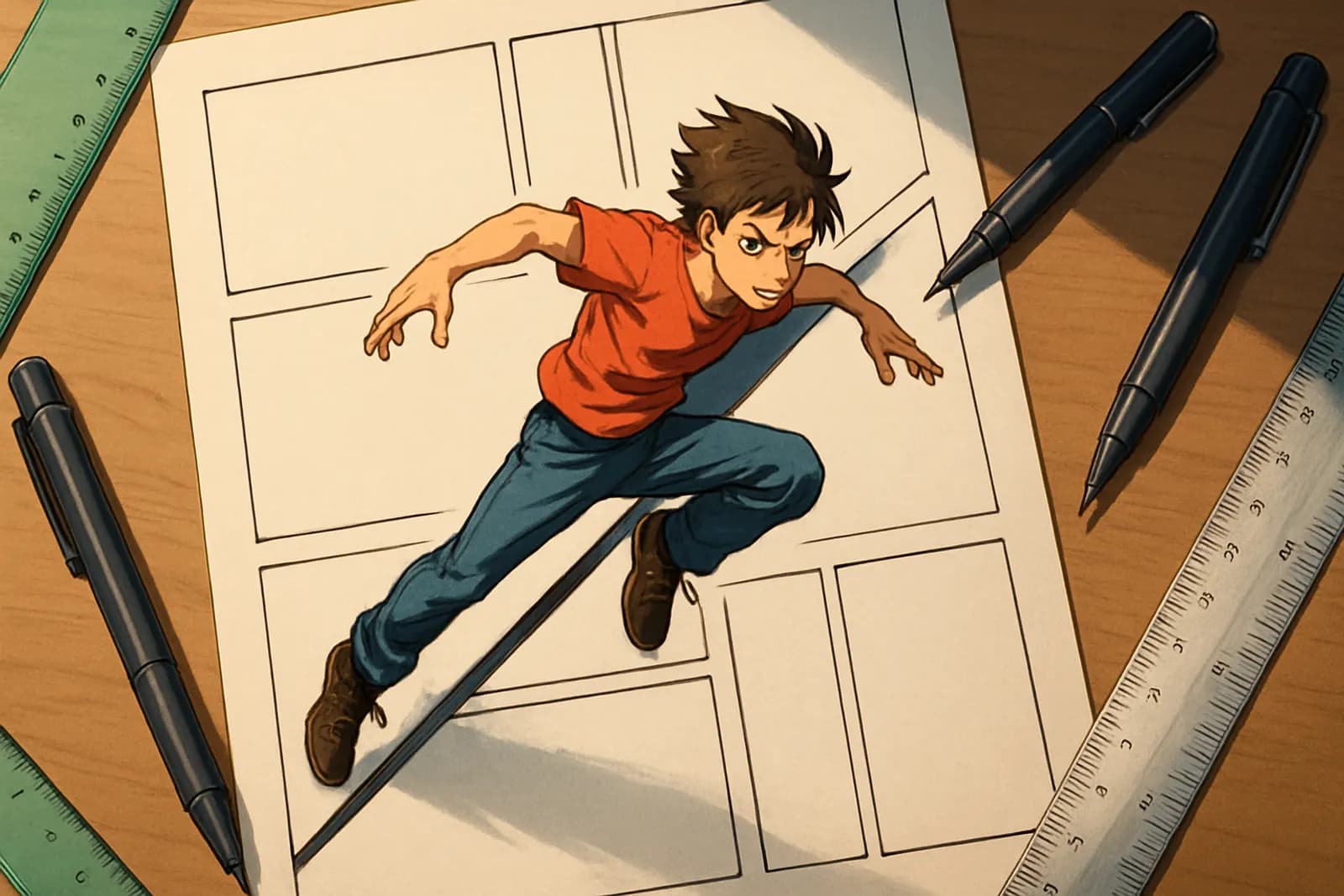
6. The Action Diagonal (4–5 panels, slanted borders)
Grid: three tiers, but the borders between panels are cut at angles instead of straight vertical lines.
Use it for: fights, chases and anything with momentum. Slanted borders push the eye forward and make the page feel unstable.
Tip: slant the borders in the direction of the movement. For more on staging fights, see the action manga choreography guide.
7. The Tall Stack (2 panels, side by side)
Grid: two tall vertical panels filling the page.
Use it for: height and distance — a character looking up at a tower, a fall, a reveal of someone standing over someone else. Also strong for "before and after" comparisons.
8. The Wide Stack (3 panels, full-width)
Grid: three full-width tiers, one panel each.
Use it for: cinematic pacing — a zoom in over three panels (wide shot, medium shot, close-up), or a slow passage of time like a sunset.
Tip: this is also the template that converts most cleanly to a vertical webtoon, because each panel is already a full-width strip.
9. The Silent Beat Page (5–7 small panels)
Grid: many small panels, often in an uneven grid, with little or no dialogue.
Use it for: tension and stillness — someone waiting for a phone call, the seconds before a confession, a duel stand-off. Small panels slow time down.
Tip: repeat the same framing with one small change per panel (a hand moves, a shadow lengthens). Repetition is the point.
10. The Broken Border
Grid: a standard 3-tier page where one character or object breaks out of its panel border and overlaps the gutter or the next panel.
Use it for: emphasis on a single figure — a punch landing, a character stepping forward to make a declaration.
11. The Flashback Frame
Grid: any standard grid, but with black gutters (or a black page background) instead of white.
Use it for: memories and dreams. Black gutters are a common shorthand for "this is the past". Many artists also soften the panel borders.
12. The Double-Page Spread
Grid: one image across two facing pages.
Use it for: the single biggest moment of a volume. In print, it only works if the spread falls on facing pages, so plan your page count backwards from it.
Tip: a spread does not survive digital single-page reading well. If you publish online first, consider a full splash instead.
Quick Reference: Template by Scene
| Scene | Template | Panels | |---|---|---| | Dialogue | Conversation Grid | 6 | | Normal story beat | 3-Tier Standard | 5–6 | | Gag or short comedy | 4-Koma Strip | 4 | | Chapter opener or reveal | Full Splash | 1 | | Big moment plus reaction | Inset Splash | 2–3 | | Fight or chase | Action Diagonal | 4–5 | | Height, scale or distance | Tall Stack | 2 | | Cinematic zoom or time passing | Wide Stack | 3 | | Tension and silence | Silent Beat Page | 5–7 | | One character's emphasis | Broken Border | 4–6 | | Memory or dream | Flashback Frame | any | | Volume climax | Double-Page Spread | 1 |
Choosing a Template: Three Questions
- How fast should this page read? Fast means fewer, larger panels. Slow means more, smaller panels.
- What is the one image the reader must remember? Give it the biggest panel on the page.
- What happens on the page turn? The last panel of a right-hand page should make the reader want to turn. The cliffhanger guide goes deeper.
Using Templates With an AI Manga Maker
Templates matter even more with AI, because an AI image model draws one image at a time. You decide the grid; the model fills the boxes. Here is how that works in Gootaku's Manga Maker.
Gootaku's built-in layouts
The Manga Maker has five page layouts you can pick before generating:
| Gootaku layout | Panels | Closest template above | |---|---|---| | Full Page | 1 | Full Splash | | Splash | 1 | Full Splash | | 2 Tall | 2 | Wide Stack (two tiers) | | 3 Manga | 3 | Wide Stack | | 2×2 Grid | 4 | Conversation Grid (two tiers) |
The Comic Maker has its own set: Single, 2 Side, 2 Stack, 3 Panel and 4 Grid. Layouts go up to four panels; the more complex templates above (diagonals, insets, broken borders) are a job for a page-assembly tool, and the next section explains how to do that.
How a panel is generated
Each panel is generated from a scene description you write, on a portrait canvas (1024×1536, a 2:3 ratio) in the manga styles. The Retro comic style generates landscape panels instead. One panel costs one token. Manga mode reads right to left, and you can add speech, thought, shout or silent bubbles, narration boxes and Japanese SFX on top of the art.
Building a complex template from AI panels
For a template like the Action Diagonal or the Inset Splash:
- Script the page first. Write one line per panel: shot size, who is in it, what happens. Our manga storyboard guide shows a format.
- Generate each panel as its own image in the Manga Maker, using a saved character so faces stay consistent. See character consistency in AI manga.
- Export. The Webtoon Strip export stacks your panels into one tall PNG; after you buy any token pack, the CBZ export gives you each panel as a separate page image.
- Assemble the page in any layout tool that supports panel borders (Clip Studio Paint, Krita or even a slide editor), crop each panel into its template slot and draw the gutters.
Prompting for the slot you are filling
The prompt should match the panel's size in the template:
- Big panels (splash, wide establishing shot): "wide shot", "full body", "detailed background".
- Small panels (silent beats, reactions): "close-up", "eyes only", "hand on doorknob", "plain background".
- Diagonal action panels: "dynamic angle", "motion lines", "low-angle shot".
Common Template Mistakes
- Using one template for the whole chapter. Pages start to blur together. Vary the grid every page or two.
- Too many panels on an action page. Fights need room. If a fight page has eight panels, cut it to four.
- Equal panel sizes everywhere. Size is how you tell the reader what matters.
- Ignoring the page turn. Reveals belong on the first panel of a new page, not the last panel of the current one.
- Text that does not fit. A small panel cannot hold a long speech. Move the line to a bigger panel or cut it. See the speech bubble design guide.
More ways to bring this to life
FAQ
What is a manga panel template?
A manga panel template is a pre-drawn page grid that sets how many panels a page has, how big they are and the reading order. Artists use templates to plan pages quickly, then adjust borders to fit the scene.
How many panels should a manga page have?
Most manga pages have 4 to 7 panels in 3 tiers. Use 1 to 3 panels for reveals and action, and 6 or more for dialogue or slow tension. Our panels per page guide covers the trade-offs.
What is the best manga panel template for beginners?
The 3-Tier Standard (two panels, one wide panel, two panels). It handles most ordinary story pages and is easy to read in either direction.
Do manga panel templates work for webtoons?
Partly. Webtoons are read in one vertical column, so multi-column grids do not translate. The Wide Stack and 4-Koma templates convert best because every panel is already full width. See the webtoon vertical panel format guide.
Can AI generate a whole manga page from a template?
Gootaku generates one panel per token and arranges up to four panels in a built-in page layout. For complex templates with diagonal or overlapping borders, generate each panel separately and assemble the page in a layout tool.
What size is a manga page?
Japanese tankōbon pages are commonly B6 or similar small formats with roughly a 5:7 ratio; magazine pages are larger. For digital-first work, a 5:7 or 2:3 portrait page is a safe choice. Check your printer's or platform's own spec before final export.
Start With a Template
Pick one template from the table, script four panels for it and generate them. You will learn more about pacing from one finished page than from a dozen blank ones.
Open the Manga Maker → — 1 free token to start and 1 more every 2 days, no card required.
---
Keep Reading
- Manga Panel Composition Rules — what goes inside each panel
- Manga Panel Pacing: How Many Panels per Page — the pacing theory behind templates
- Manga Panel Aspect Ratios Explained — sizes for print and screen
- Common AI Manga Panel Mistakes — what goes wrong when AI fills the grid
Ready to create your own manga?
Start free — no credit card required. 1 free AI generation on signup, +1 every 2 days.
Start CreatingOn the go? Get the Gootaku iPhone app.
Related guides
Manga Panel Pacing — How Many Panels Per Page, Explained
How many panels belong on a manga page, and why it changes with the scene. A practical guide to pane…
How to Read Manga: Right-to-Left Reading Order Explained
Manga is read right to left, top to bottom. How to read pages, panels and speech bubbles in order, w…
Manga Speech Bubble Design Guide — Types, Rules, and Style
Master speech bubble design — shapes, tail placement, text size, and fonts. Includes rules for every…
Mangaka Meaning: What a Mangaka Is and How They Work
Mangaka means a manga artist, the person who writes and usually draws a manga. What the word means, …
AI Anime Avatar Maker — Create Profile Pictures and OCs
Create anime avatars with AI for profiles, original characters, manga stories, GIF reactions, and Go…
Anime Character Design — Memorable Characters with AI
Learn the principles of anime character design — silhouette, color theory, signature traits. Plus AI…